
Visily
Turns screenshots, text, and sketches into editable UI mockups for non-designers.
FreemiumFree planNo credit cardWeb
Last verified Jul 4, 2026
Turns screenshots, text, and sketches into editable UI mockups for non-designers.
Last verified Jul 4, 2026
Fast-read signals for fit, pricing, and trust.
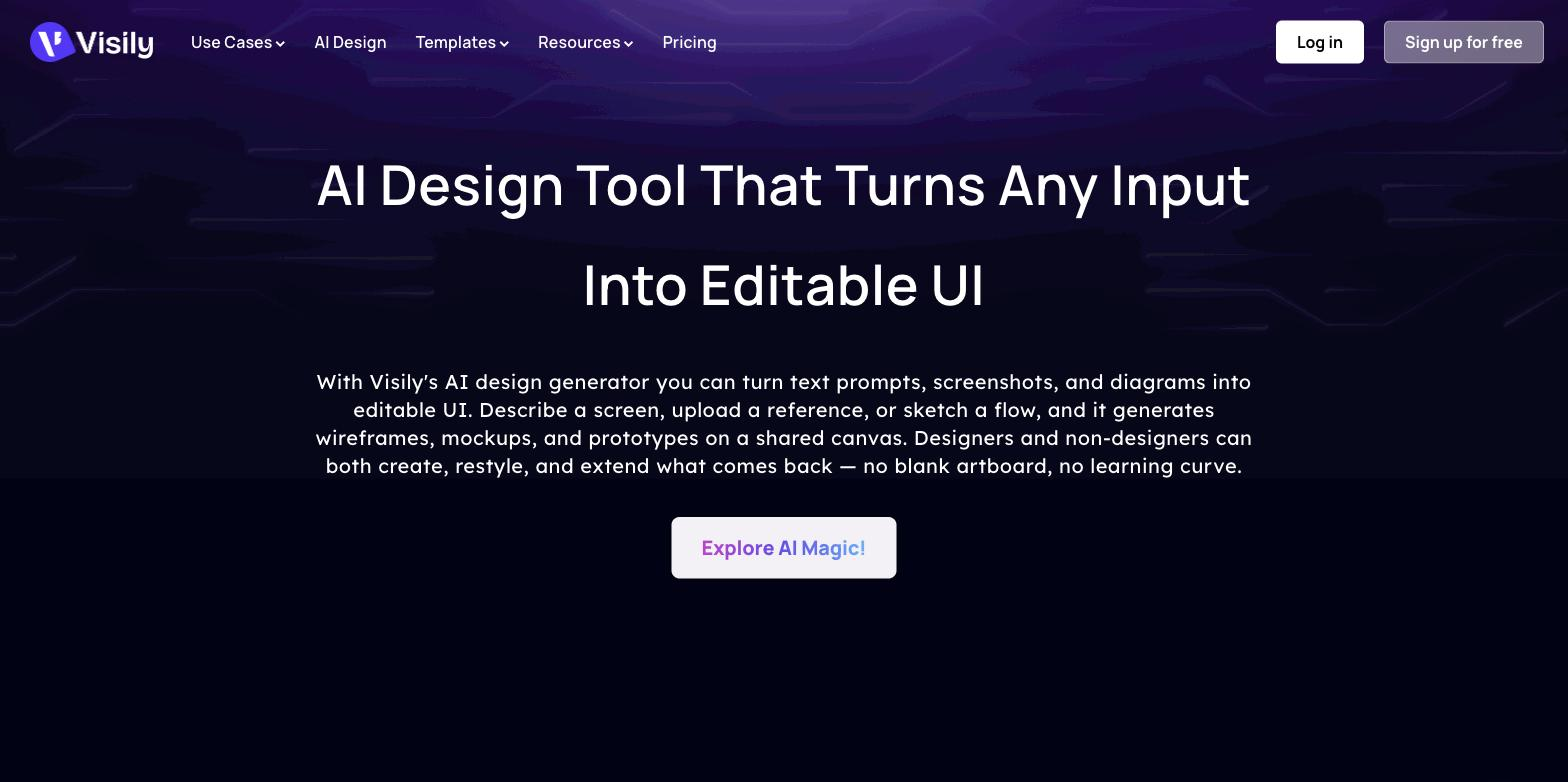
Visily is a UI design tool that lets non-designers create mockups from screenshots, text prompts, sketches, or templates. You start from any of those inputs and edit everything on a canvas, with smart components and auto-prototyping to reach polished, shareable concepts. It is aimed at product managers, founders, and teams who need to communicate ideas visually without deep design tooling. It is for concepts and prototypes, not production design.
Hand it a screenshot, a text prompt, a diagram, a template, or a mix, and it produces editable UI screens you reshape directly on a canvas, assembling them with smart components and turning the result into a clickable prototype. Diagramming, annotation, and real-time collaboration sit alongside the design surface.
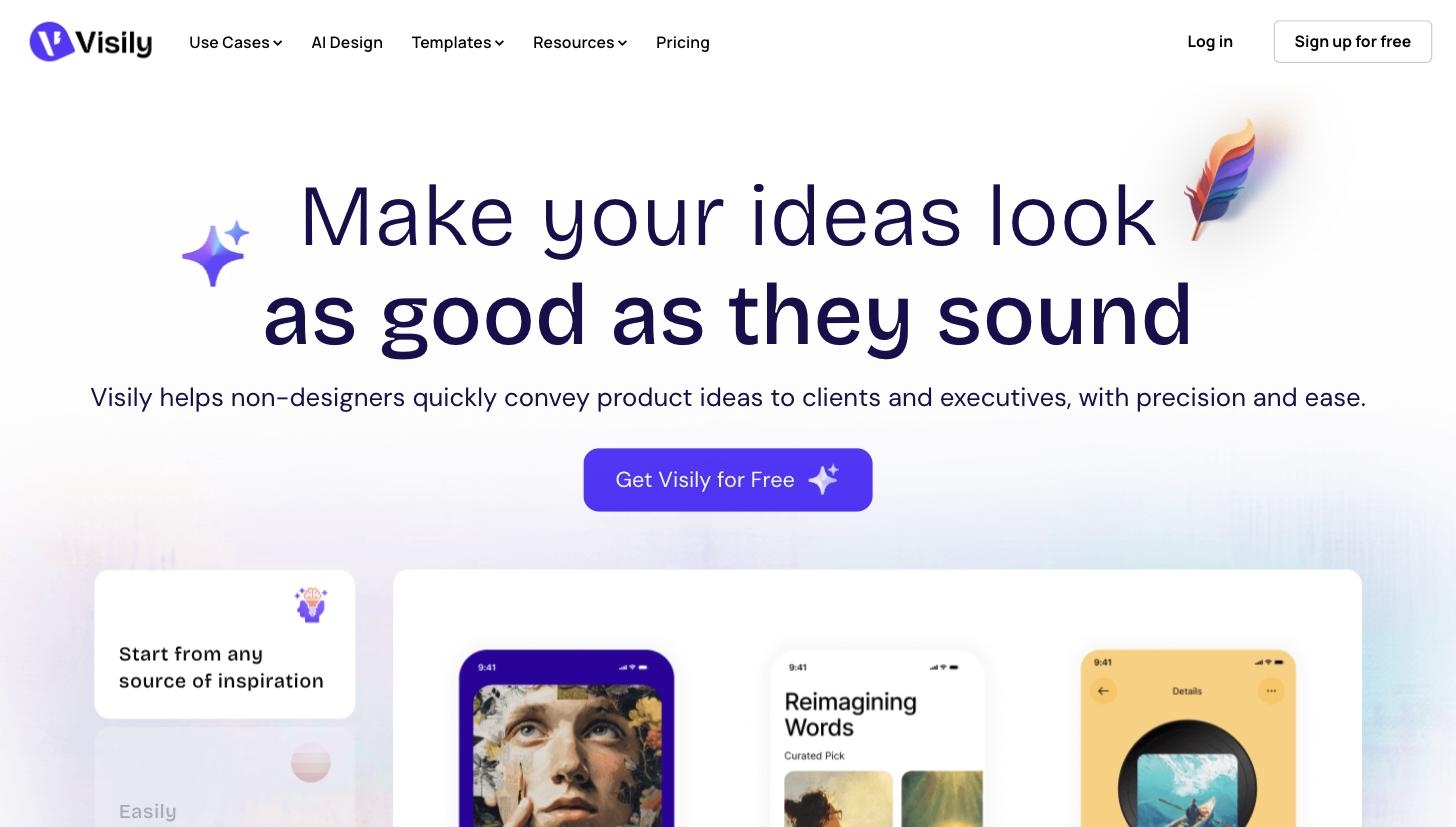
It is made for non-designers — product managers, founders, marketers, consultants — who need to show an idea to clients, executives, or teammates without the learning curve of a full design tool. It works at the concept-and-communication stage, ahead of detailed design and engineering handoff.
The scope line: it is for concepts and prototypes. Pixel-level production design, design systems, and deep developer handoff still belong in a dedicated design tool.
Quick fit check against how you actually work.
What you can actually do with this tool.
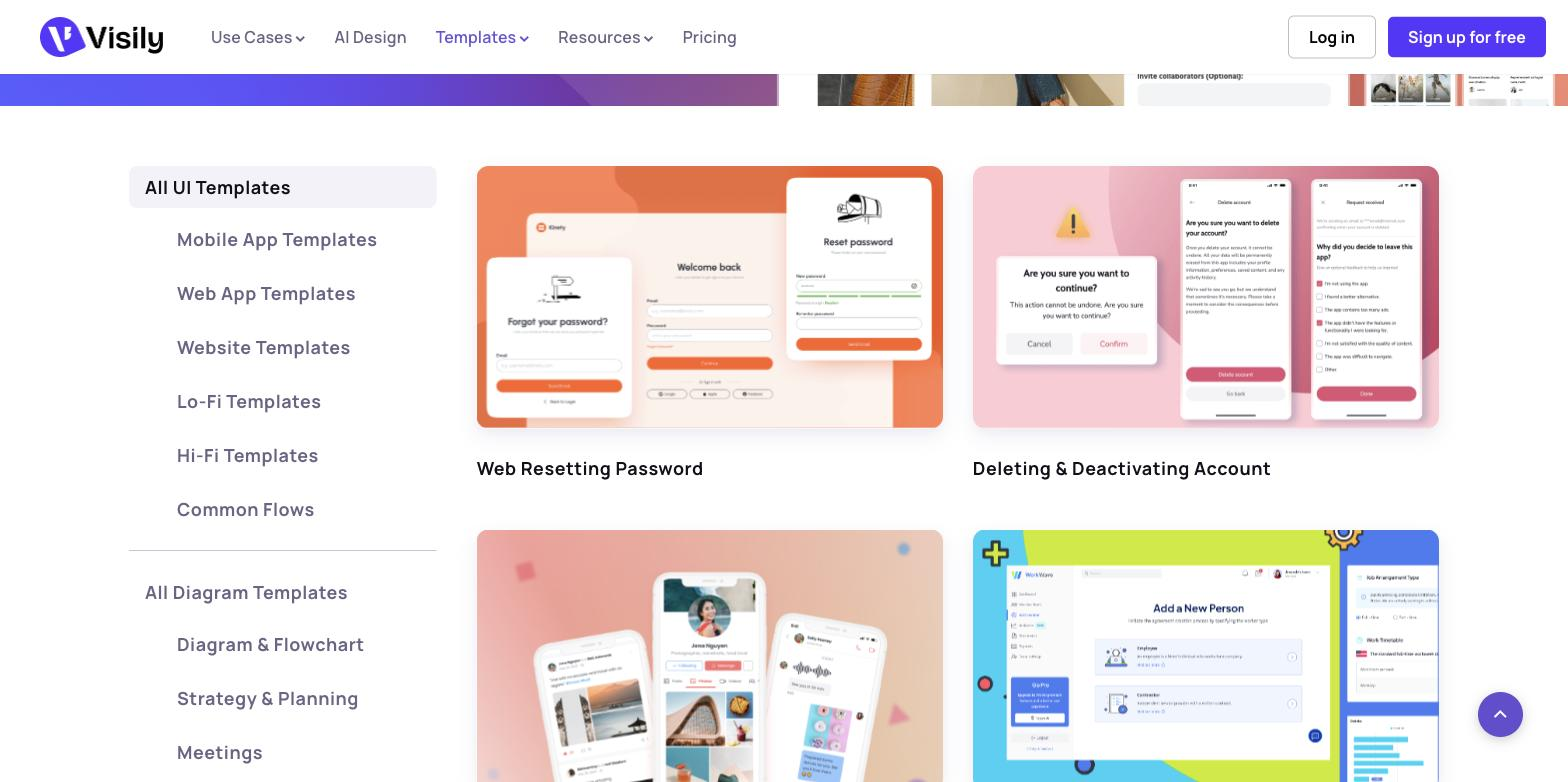
Begins a design from a screenshot, a text prompt, a diagram, a template, or a mix, so you can start from whatever inspiration you already have.
Lets you edit every element of a screen directly on the canvas, so a generated layout becomes exactly what you had in mind rather than a fixed output.
Speeds up building with reusable, intelligent UI components, so non-designers can assemble polished screens without crafting each part by hand.
Turns static screens into a clickable prototype, so you can share a flow that feels real and gather feedback before detailed design.
Supports diagrams and notes alongside designs, so the reasoning and structure sit next to the screens for reviewers.
Lets a whole team design and comment together in one place, so product, marketing, and stakeholders can shape a concept jointly.
Pricing tiers and what's included in each.
Free plan available. Paid plans start at $11 per editor/month billed annually (Pro); Business is $29 per editor/month; Enterprise is custom. Promotional discounts may apply.
A short path to first value.
Common questions about this tool, answered.
Beyond the screens, it offers a predictive view of where users are likely to look first, which helps justify a layout choice to clients or executives who don't think in design terms.
Yes — a screenshot of an existing app or page can be turned into editable screens, so you can iterate on something real rather than starting from a blank canvas.
Real-time collaboration lets product, marketing, and stakeholders edit and comment on the same concept together, which keeps feedback in one place instead of scattered files.
Because it targets concepts and prototypes, an approved design is usually carried into a dedicated design tool for pixel-level production and developer handoff.
Context for choosing between this tool and alternatives.
Accessibility for early concepts versus depth for final design is the deciding factor. Choose it when non-designers need quick, editable mockups from varied inputs. Another AI-first mockup tool, Uizard, occupies similar ground; teams needing production design, design systems, and handoff move to a dedicated tool. PMs and founders communicating an idea value the low learning curve; design teams finishing a product reach for a heavier tool.
Other tools that show up for the same kind of work.
Framer AI
Freemium